
Features
FBR digital invoicing integration, one click per invoice
BillKul connects your invoicing directly to FBR’s Digital Invoicing API, run by PRAL. When you click “Save and submit”, the invoice goes to FBR in real time. FBR returns its own invoice number, and BillKul prints that number with a QR code on your invoice PDF. Your buyer can scan the QR to check the invoice. You never re-type a sale into IRIS. [VERIFY: SRO/rule reference]
How an invoice reaches FBR
Every invoice follows the same short path. Most of the checking happens before you click submit, so problems are caught while they are still easy to fix.
- Create the invoice. Pick the client by name, NTN, CNIC or phone, and add items by name, SKU or barcode. Tax is worked out from each product and the buyer’s profile.
- Click “Check with FBR” if you want a dry run. BillKul checks the invoice against FBR’s rules without filing anything.
- Click “Save and submit”. The invoice is sent to FBR’s Digital Invoicing API using your own FBR token. [VERIFY: SRO/rule reference]
- FBR replies. On acceptance you get the FBR invoice number, and BillKul prints it with the QR code on the PDF.
- The invoice shows “FBR Accepted” and is locked for compliance. Email the PDF to your client straight away.
Practise in the sandbox, then switch to production
FBR gives businesses two environments. The sandbox is for testing: invoices sent there are practice only. Production is the live system for real sales. In BillKul you start in the sandbox with your sandbox token, send as many test invoices as you like and see exactly what FBR returns. Sandbox invoices are free and don’t count against your plan. When everything looks right, add your production token and click “Switch to Production”. [VERIFY: SRO/rule reference]
When FBR says no: plain-language rejections
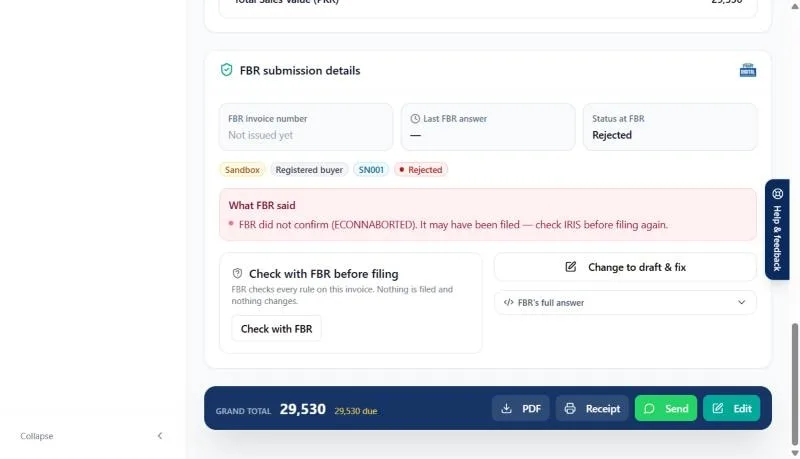
FBR’s error messages are written for systems, not people. BillKul translates them. Under “What FBR said” you see the problem in plain language, then click “Change to draft & fix”, correct the invoice and submit it again. The most common reasons are easy to fix once you can see them: [VERIFY: SRO/rule reference]
- A product’s HS code or FBR unit of measure doesn’t match what FBR expects. The product FBR checklist and the “Not FBR-ready” counter catch this before you invoice.
- The sales tax rate or SRO doesn’t fit the product’s sale type.
- The buyer’s NTN, registration status or province is wrong. “Check with FBR” on the customer record verifies registration.
Timeout-safe: never file the same invoice twice
Sometimes FBR’s system is slow and doesn’t answer in time. Blindly pressing submit again could file a duplicate. BillKul marks the invoice “FBR unconfirmed” and asks you to check IRIS first. If FBR did receive it, you record that; if not, you file it again safely. Every unconfirmed invoice is listed in its own tab until it is settled.
Three statuses on every invoice
An invoice can be issued but unpaid, or paid but not yet accepted by FBR. BillKul keeps these apart so nothing is hidden: the document status (Draft or Issued), the payment status (Unpaid, Paid or Overdue) and the FBR status (Not filed, Sent, Accepted or Failed). Each one is shown as a coloured badge with a word, never colour alone.
A daily FBR clean-up in minutes
The invoice list has tabs for FBR failed, FBR unconfirmed and Not filed. Open them once a day, fix what is there and you finish with every sale accepted by FBR. The dashboard shows this month’s FBR status and a “Fix at FBR” shortcut, and the sales tax return helper warns you about any invoice still not filed.
What each FBR status means
| FBR status | What it means | What to do |
|---|---|---|
| Not filed | Saved in BillKul, not yet sent to FBR. | Submit it, or run “Check with FBR” first. |
| Sent / Unconfirmed | Sent, but FBR’s reply has not been confirmed. | Check IRIS before filing again. |
| Accepted | FBR accepted it and returned the invoice number. | Nothing. The invoice is locked; correct it with a credit or debit note. |
| Failed | FBR rejected it. | Read “What FBR said”, then “Change to draft & fix”. |
What’s included
Save and submit to FBR in one click
Each invoice goes to FBR’s Digital Invoicing API (PRAL) in real time. FBR returns the invoice number, and BillKul prints it on your PDF. [VERIFY: SRO/rule reference]
FBR invoice number and QR code on every invoice
The FBR invoice number and QR code are printed on the invoice PDF. Your buyer scans the QR to check the invoice with FBR.
“Check with FBR” before you file
A dry run that checks the invoice against FBR’s rules without filing anything. Fix problems first, then submit.
Rejections explained in plain language
If FBR rejects an invoice, “What FBR said” tells you why. Choose “Change to draft & fix”, correct it and submit again.
Sandbox first, then one-click production
Practise in FBR’s sandbox (test) environment. Sandbox invoices don’t count against your plan. When you are ready, click “Switch to Production”.
Timeout-safe filing, no duplicates
If FBR doesn’t answer in time, BillKul asks you to check IRIS before filing again, so the same invoice is never filed twice.
Three clear statuses and a daily FBR clean-up
Every invoice shows its document, payment and FBR status. Tabs for FBR failed, FBR unconfirmed and Not filed make the daily check take minutes.
FAQ
Common questions
Do I still need to enter invoices in IRIS?
No. Each invoice you submit in BillKul goes to FBR through the Digital Invoicing API. You use IRIS for things like checking an unconfirmed invoice and filing your sales tax return. [VERIFY: SRO/rule reference]
What is PRAL, and why does it matter?
PRAL (Pakistan Revenue Automation) runs FBR’s IT systems, including the Digital Invoicing API that receives invoices. Your business gets sandbox and production tokens for this API, and BillKul uses your tokens to submit your invoices. [VERIFY: SRO/rule reference]
Who can see my FBR tokens?
Only the account owner. Settings, Billing and FBR tokens are owner-only; staff accounts can create invoices but cannot see or change the tokens.
How does my buyer verify an invoice?
By scanning the QR code printed on the invoice PDF next to the FBR invoice number. [VERIFY: SRO/rule reference]
Do sandbox invoices count against my plan?
No. Sandbox invoices are free and don’t count. Only invoices submitted in production count against your plan.
Can I change an invoice after FBR accepts it?
Accepted invoices are locked for compliance. Issue a credit note or debit note linked to the original instead. [VERIFY: SRO/rule reference]
Is BillKul an FBR-licensed integrator?
[PLACEHOLDER: confirm BillKul’s status with FBR/PRAL before publishing this answer]
Ready to make FBR invoicing BillKul simple?
See BillKul on your own products in a live demo, or start a free trial and test in the FBR sandbox. Sandbox invoices never count against your plan.